



Building a Facebook campaign one ad at a time is slow: a campaign, then ad sets, then every ad, every headline, every image, uploaded and typed by hand. Meta Ads Manager has a faster path most advertisers never touch — bulk import. You hand it a single spreadsheet describing the whole campaign, plus the image files, and it builds everything at once. This guide explains how bulk import works, how to prepare a file Meta will accept, and how AdControlCenter gives you that file already built and ready to upload.
- Meta Ads Manager can import an entire campaign from one spreadsheet — the Import ads in bulk tool.
- The file describes your campaign, ad sets, and ads; the images are uploaded alongside it and matched by filename.
- Getting the format right by hand is fiddly (encoding, delimiters, exact column names, your Page ID).
- AdControlCenter builds the whole campaign for you and exports a bundle — the spreadsheet plus the images — already formatted for your Facebook Page.
- Everything imports paused as drafts, so nothing spends until you review and publish.
What "bulk import" actually is
Every Facebook campaign is a three-level structure: a campaign (the objective and buying type), one or more ad sets (budget, audience, placements), and the ads inside them (image, headline, text, link). Normally you build that structure by clicking through Ads Manager screen by screen.
Bulk import lets you describe that same structure in a spreadsheet instead. Each row is one ad, with columns for the campaign it belongs to, the ad set, the budget, the countries, the headline, the body text, and so on. Meta reads the file, groups the rows into campaigns and ad sets, and creates everything in one pass. It's the same tool Meta uses for its own export — you can export an existing campaign to a file, and import that same file format back in.
For anyone running more than a couple of ads, it's dramatically faster than the manual builder.
Why the file is hard to get right by hand
The catch is that Meta is strict about the file. A few things trip people up constantly:
- The file format. Meta imports from a specific Excel (
.xlsx) template — not a CSV you throw together. Hand it the wrong format and Meta reads the whole header as one column and ignores every field (the classic "Header Label Isn't Correct" warning). - Exact column names. The template has 140+ columns, and every header has to match Meta's names precisely. One renamed or extra column and that data is ignored.
- Right values in the right shape. Objectives, statuses, optimization goals, and countries all have specific formats Meta expects.
- Your Facebook Page. Every ad has to be tied to a Facebook Page by its ID — Meta rejects any imported ad without one.
None of it is impossible, but it's exactly the kind of formatting work that's easy to get subtly wrong and frustrating to debug.
Skip the spreadsheet — get a bundle that's already correct
AdControlCenter builds your whole Facebook campaign and exports it as a ready-to-import Excel file on Meta's official template — columns and your Page ID all handled. You just download and import.
Start for $39.90/mo7 days free, then $39.90/mo. Cancel anytime.

Live today.
The full campaign — copy, images, targeting — generated for your site and deployed paused for your approval.
How AdControlCenter builds the bundle for you
Instead of formatting a spreadsheet yourself, you let AdControlCenter build the campaign and hand you a ready-to-import bundle.
When you create a Meta campaign in AdControlCenter, it reads your website and product, then generates the parts that normally take an afternoon:
- The strategy — which objective fits, who to target, how to split the budget across ad sets.
- The copy — headlines and primary text for each ad, inside Meta's character limits.
- The images — real ad creative built from your product, not stock photos.
- The structure — a proper campaign → ad set → ad hierarchy, so it imports as a clean, organized campaign.
Then it exports all of that as a bundle formatted to Meta's exact bulk-import spec. Your job isn't to build or format anything — it's just to choose which ads to keep and click download.
Step 1 — Pick the ads you want to keep
After the campaign is generated, you land on a selection screen with every ad laid out — image, headline, and text. Keep the ones that fit your brand and remove the rest; a thumbs-down is enough. Whatever you keep is exactly what ends up in the bundle.
Step 2 — Download the bundle for your Facebook Page
Every Meta ad runs from a Facebook Page, so Meta needs to know which Page yours run from. The first time you download, AdControlCenter asks for your Facebook Page ID and saves it to your workspace, so you only ever enter it once.
Open your Facebook Page, go to Settings → About, and scroll to Page ID — a long number like 104288048412487. AdControlCenter stamps it into the bundle so every imported ad is already wired to the right Page.
Click Download for Meta and you get a single .zip containing:
campaign.xlsx— the campaign, ad sets, and ads, built on Meta's official import template.ad_01.jpg,ad_02.jpg, … — one image file per ad.README.md— a short reminder of the import steps below.
That's the whole package. Now it moves into Meta.
Importing the bundle into Meta Ads Manager
The steps below are the same whether AdControlCenter built your file or you prepared one yourself — this is Meta's standard bulk-import flow.
Step 3 — Open the bulk importer
Open Meta Ads Manager on a desktop and make sure the ad account selected in the top-left is the one you want these ads in. Choosing the wrong account here is the single most common mistake.
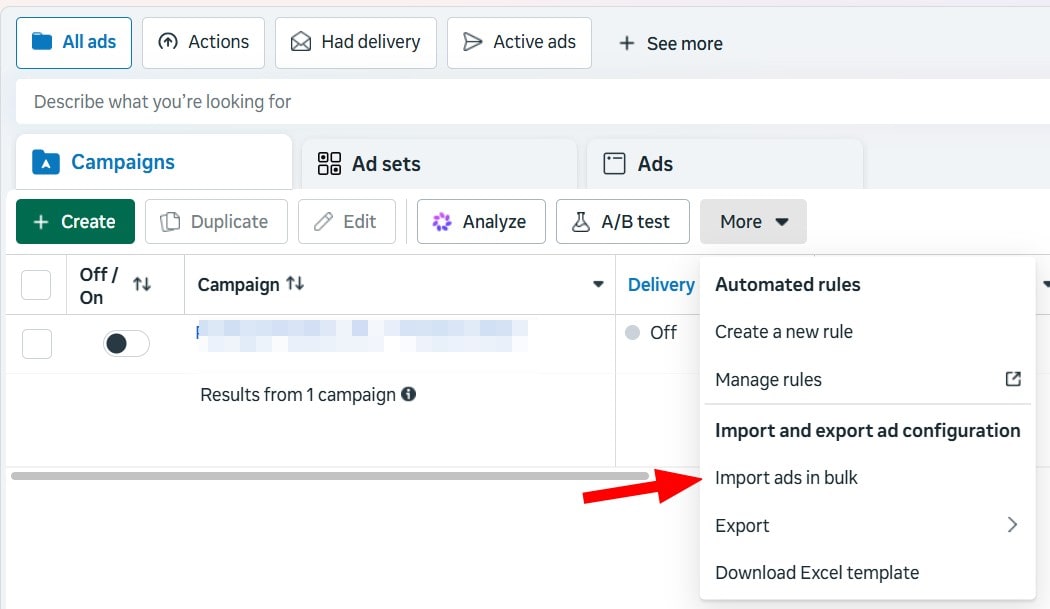
Go to the Campaigns tab, open the More menu, and under Import and export ad configuration choose Import ads in bulk.
Step 4 — Upload the spreadsheet
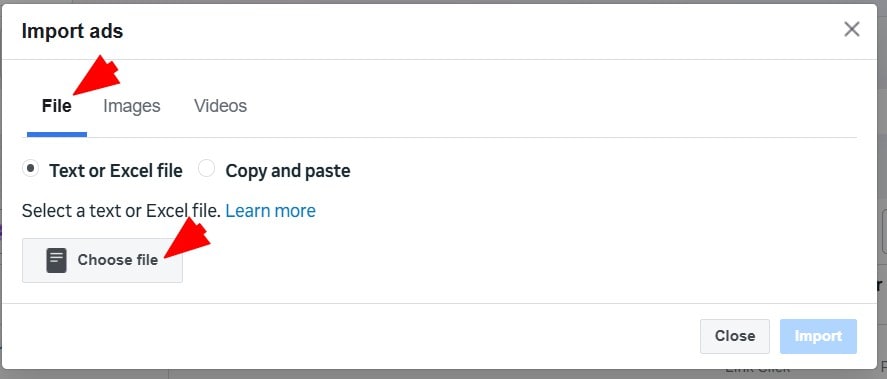
In the import dialog, stay on the File tab, leave Text or Excel file selected, and click Choose file. Pick campaign.xlsx from the bundle.
campaign.xlsx is built on Meta's official import template. You're welcome to open it and review the ads, but don't rename or delete the column headers — Meta matches your data to its fields by those exact names.
Step 5 — Upload the images
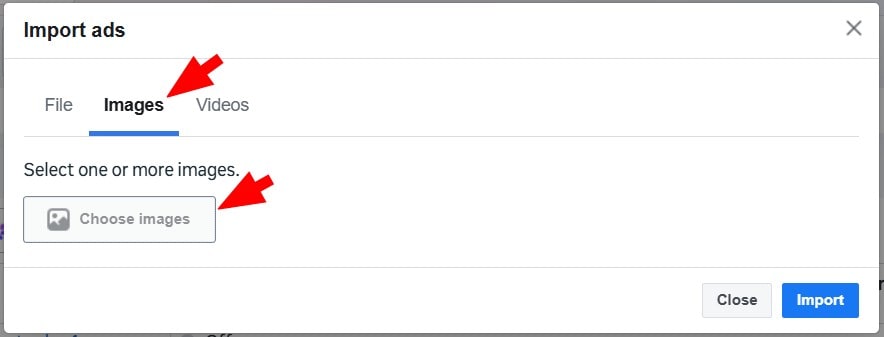
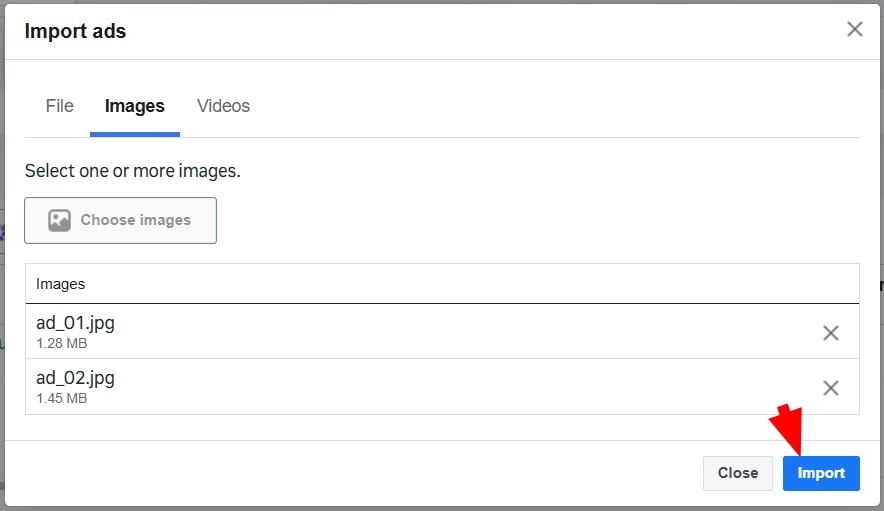
Switch to the Images tab and click Choose images. Select every image file from the bundle — ad_01.jpg, ad_02.jpg, and so on.
Meta matches each image to its ad by filename, so keep the names exactly as they are. Once you see all your images listed, click Import.
Ready-made ads, imported in minutes
AdControlCenter writes the copy, generates the images, and formats the file — you download a bundle and follow these exact steps. No design work, no spreadsheet wrangling.
Start for $39.90/mo7 days free, then $39.90/mo. Cancel anytime.
Step 6 — Let it process, then review and publish
Meta processes the import and builds your campaign, ad sets, and ads.
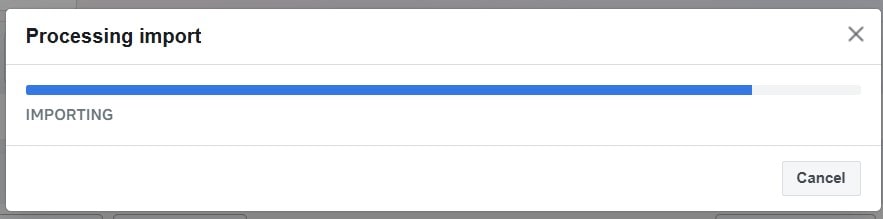
When it finishes, Meta shows a summary. A few warnings are normal and safe to proceed through; only fix items flagged as errors in red. Everything imports paused, as drafts — nothing spends a cent until you turn it on.
Review the campaign, make any final tweaks, and publish when you're ready. Your ads then go through Meta's normal review, exactly as if you had built them by hand.
FAQ
What is bulk import in Meta Ads Manager? It's a tool that builds an entire campaign — campaign, ad sets, and ads — from a single spreadsheet plus the image files, instead of creating each ad by hand in the ad builder. It's found under the More menu on the Campaigns tab, as Import ads in bulk.
What format does the import file need to be in?
An Excel (.xlsx) file built on Meta's official bulk-import template — the same one you can download from the import dialog. It has 140+ exact column headers and specific value formats. The safest way to get a valid file is to let a tool like AdControlCenter generate one for you rather than filling the template by hand.
Why does the import need my Facebook Page ID? Every Meta ad runs from a Facebook Page, so Meta rejects any imported ad that isn't tied to one. AdControlCenter asks for your Page ID once, saves it to your workspace, and stamps it into every bundle so all your imported ads point at the right Page.
Will importing start spending money right away? No. Every campaign, ad set, and ad imports paused. Nothing spends until you review the campaign and switch it on yourself.
The import showed a "Header Label Isn't Correct" warning — did it fail?
That warning means a column header didn't match one Meta recognizes, so that column's data is ignored — usually because the file was a plain CSV or text file rather than Meta's Excel template, which makes Meta read the whole header row as a single column. A proper .xlsx built on Meta's template (like the one AdControlCenter exports) won't trigger it. Red errors, not warnings, are what actually stop ads from being created.
Can I edit the ads after importing? Yes. Once imported, the ads are ordinary Meta drafts. You can change budgets, targeting, copy, or images inside Ads Manager before you publish.
Let AdControlCenter build the ads for you
Point it at your website and it writes the copy, generates the images, and builds a ready-to-import campaign — in a couple of minutes. Everything imports paused, so nothing spends until you say so.
Start 7-day free trial7 days free, then $39.90/mo. Cancel anytime.
Live today.
The full campaign — copy, images, targeting — generated for your site and deployed paused for your approval.

We build AdControlCenter — AI-powered ad management for small businesses, online stores, SaaS companies and service providers. We write what we'd want to read: real numbers, no fluff, the things we wish we'd known when we started.
More from the team →