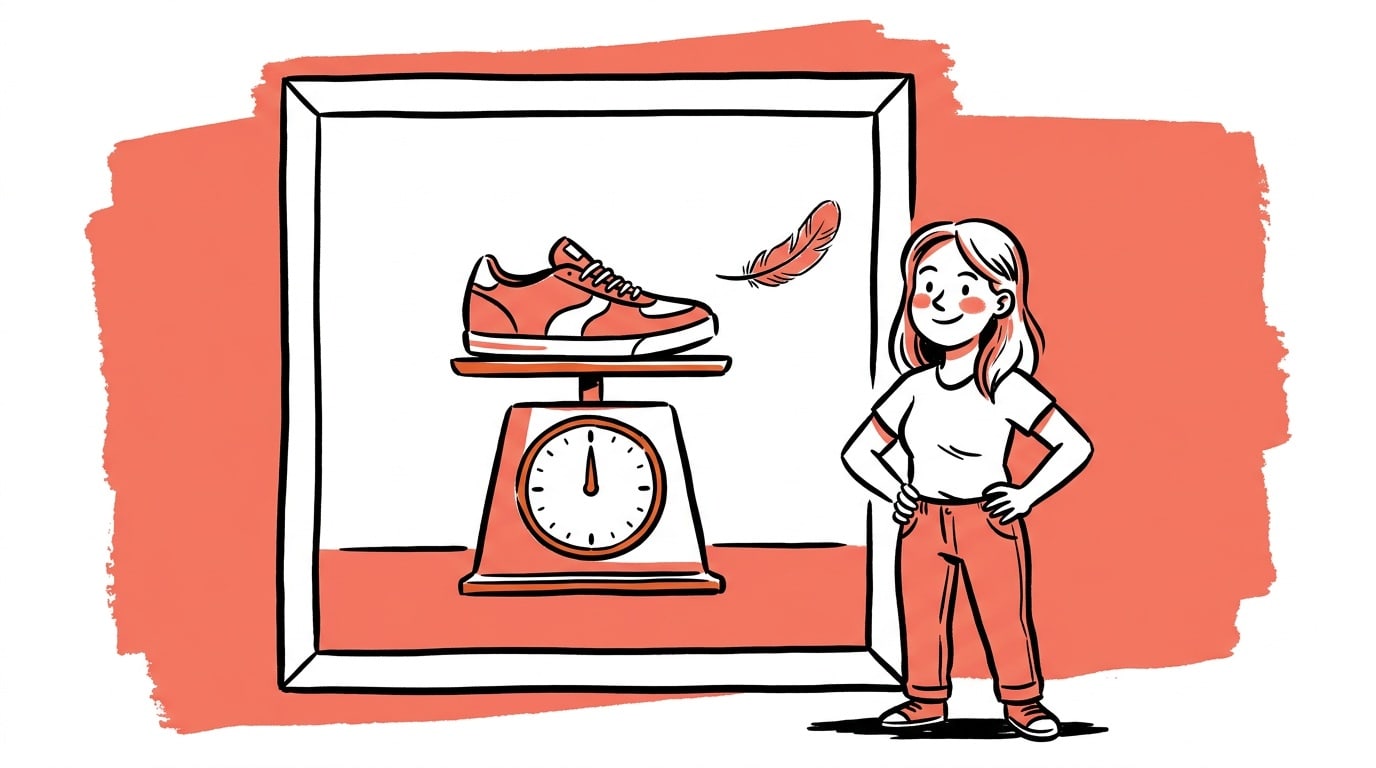



Most WooCommerce stores get product images wrong in the same two ways: they upload a 4,000-pixel photo straight off a phone, and they upload it as a PNG. The store then serves a 2 MB image where a 50 KB one would look identical.
The confusing part is that WooCommerce's own settings don't tell you to stop. The numbers in the Customizer — 300 px, 600 px — describe how your images are displayed. They say nothing about what you should upload. Those are different decisions, and only one of them is yours.
Here is the arithmetic behind the upload decision, and a benchmark measured on real product images rather than guessed.
- WooCommerce's defaults are display sizes: catalog thumbnails 300 px square, the main product image 600 px wide, gallery thumbs 100×100.
- Upload square. WooCommerce crops catalog thumbnails to 1:1 by default, so a non-square upload gets cropped by the store, not by you.
- 1080×1080 is the practical upload floor: it covers every size WooCommerce generates at roughly 2× for retina screens, and it is also exactly Meta's square ad spec — one asset, two jobs.
- Target under 150 KB per image, in WebP. On 12 real 1080×1080 product shots we measured, WebP at quality 80 averaged 49 KB — and the worst case was 107 KB.
- Keep a larger 1500 px+ master if you sell through Google Shopping: Merchant Center wants at least 500×500 and recommends 1500×1500 or above.
What WooCommerce actually does with the file you upload
When you upload a product image, WordPress and WooCommerce between them generate a stack of derivative files. WooCommerce defines three of them (official theme-developer docs):
| Size name | Default | Cropped? | Where it shows |
|---|---|---|---|
woocommerce_gallery_thumbnail | 100×100 | Yes, square | The small gallery switcher under the main image |
woocommerce_thumbnail | 300 px wide | Yes, square by default | Shop and category grids, related products |
woocommerce_single | 600 px wide | No — always uncropped | The main image on the product page |
You control two of those from Appearance → Customize → WooCommerce → Product Images: main image width, thumbnail width, and thumbnail cropping (1:1, Custom, or Uncropped). The default thumbnail crop is 1:1. The main product image no longer has a crop setting at all — it always renders at the aspect ratio you uploaded.
Two consequences fall straight out of that, and they're the whole reason the upload size matters:
Your catalog grid is square whether you like it or not. If you upload a 4:3 photo, WooCommerce crops the middle out of it for every shop-page thumbnail. If the product isn't centred, the crop eats it. Uploading square means the thumbnail you see is the thumbnail you designed.
Your product page is not square. woocommerce_single is uncropped, so a square upload gives you a square main image and a 4:5 upload gives you a tall one. Mixing ratios across a catalog is what makes a product grid look untidy even when every individual photo is good. WooCommerce's own guidance is a minimum of 800×800 and consistency across the catalog.
The math: why 1080×1080
Start from the display sizes and work backwards. Every size WooCommerce generates needs roughly 2× its CSS pixels to stay sharp on a retina screen, and WordPress builds a srcset so the browser picks whichever generated file fits.
| Generated size | Displayed at | Needs (2×) | Covered by a 1080 square? |
|---|---|---|---|
| Gallery thumbnail | 100 px | 200 px | Yes, comfortably |
| Catalog thumbnail | 300 px | 600 px | Yes, comfortably |
| Main product image | 600 px | 1200 px | 1.8× — close enough to be indistinguishable |
So 1080 is not a magic number handed down by WooCommerce. It's the smallest square that covers the whole stack at or near 2×. If you want the main image at a strict 2×, upload 1200×1200 — nothing breaks, the files are about 20% heavier.
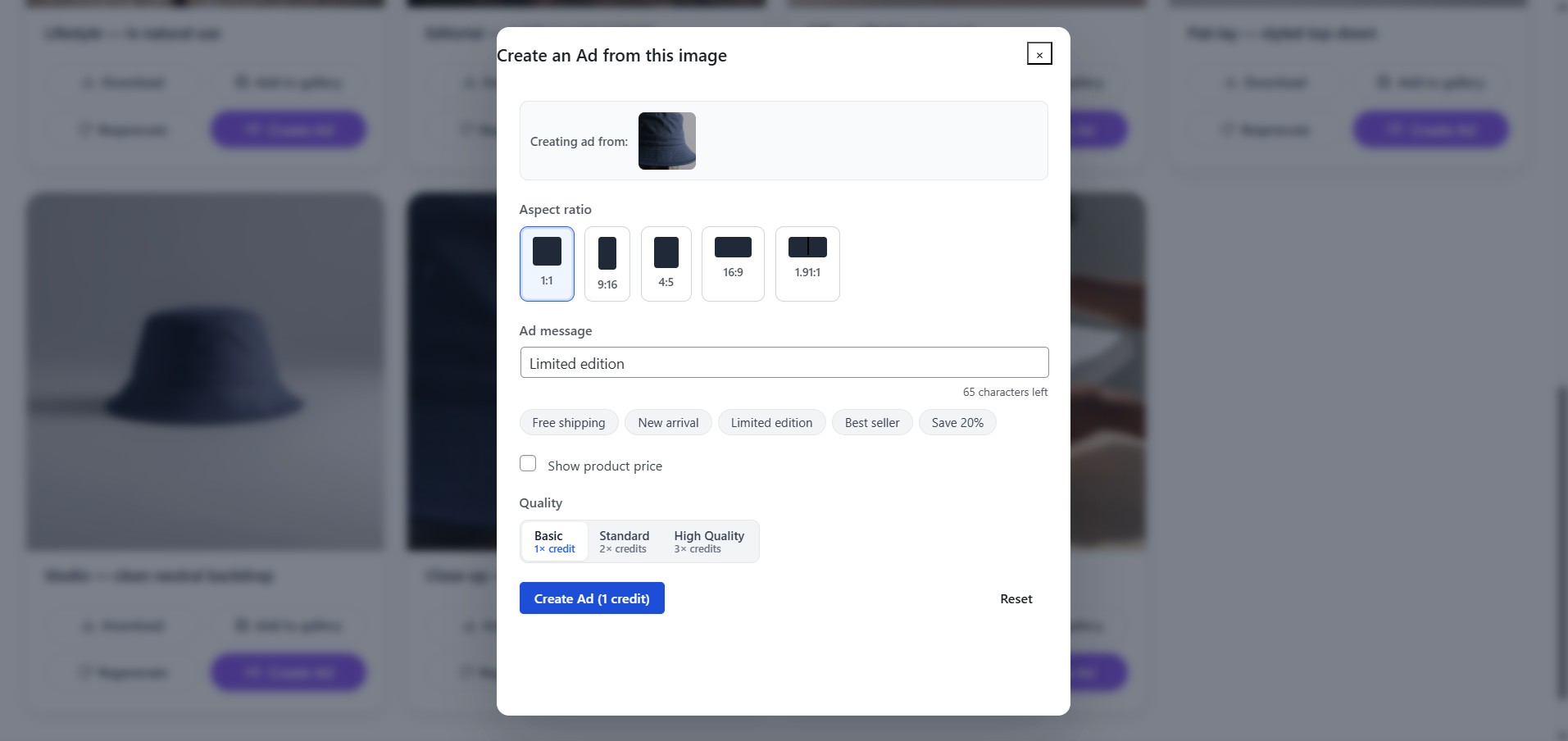
What makes 1080 the better default is the second job the file does. 1080×1080 is the square spec every ad platform is built around — Meta's square feed placement, Instagram, square Google Display units. If you generate product images at 1080 square, the same asset goes on your product page and into a Facebook ad without a resize step, and without the soft, re-compressed look you get from upscaling a 600 px store image into an ad.
One asset, two jobs, no upscaling. That's the argument.
WordPress will not keep your 4,000 px upload as the full-size file. Since 5.3, any upload whose width or height exceeds the big_image_size_threshold — 2560 px by default — is scaled down, and the scaled version becomes the "full" image. Uploading a 6 MB phone photo doesn't buy you a 6 MB asset. It buys you server CPU, a slow upload, and a 2560 px file you never serve.
The half nobody does: file size
Dimensions are the easy half. The half that actually decides whether your shop page feels fast is bytes, and it is almost entirely a format decision.
We measured it rather than guessing. We took 12 real 1080×1080 AI-generated product images out of our own creative pipeline and re-encoded each one four ways with sharp, the same library WordPress hosts and image plugins typically sit on top of:
| Format | Average | Range |
|---|---|---|
| PNG | 752 KB | 372 KB – 2,166 KB |
| JPEG, quality 85 (mozjpeg) | 81 KB | 54 KB – 158 KB |
| WebP, quality 85 | 59 KB | 38 KB – 130 KB |
| WebP, quality 80 | 49 KB | 31 KB – 107 KB |
Three things fall out of that table.
PNG is the single most expensive mistake in a WooCommerce catalog. For a photographic product shot, PNG averaged roughly 15× the bytes of WebP at a quality nobody can tell apart at 1080 px. PNG earns its place for logos, flat graphics, and transparency — not for photographs of things you sell.
WebP beats JPEG by about a quarter, exactly as advertised. At matched quality 85, WebP came in 27% smaller than mozjpeg-tuned JPEG. That lands inside the 25–34% Google publishes for WebP lossy versus comparable JPEG, which is a reassuring sign the benchmark isn't measuring something weird.
The 150 KB target is not aggressive — it's slack. Every one of the 12 images came in under 110 KB as WebP at quality 80. The worst case had roughly 30% of headroom left. If your product images are over 150 KB each, the problem is almost never that they're too detailed; it's that they're PNGs, or 2560 px, or both.
WebP is safe to standardise on now: it sits around 97% global browser support, WordPress has accepted WebP uploads since 5.8, and anything older falls back through the srcset/picture machinery your theme already emits. Note that WordPress core does not auto-convert your JPEGs to WebP — that feature was pulled from core and lives on in the Modern Image Formats plugin — so if you want WebP, either upload WebP or run a conversion plugin.

Live today.
The full campaign — copy, images, targeting — generated for your site and deployed paused for your approval.
Where 1080 is not enough: Google Shopping
If your products go into a Merchant Center feed, the storefront number stops being the only number.
Google requires product images of at least 500×500 pixels and recommends 1500×1500 or larger for the best display across Shopping surfaces, with a hard ceiling of 64 megapixels and 16 MB per file (image link requirements). Google has also announced that new minimums take effect 31 January 2027, so a feed built on small images is on a clock.
The practical resolution: keep a 1500–2000 px square master per product, and let that be what you upload to WordPress. WordPress generates the store-facing derivatives from it, the feed gets a large image, and you're still nowhere near the 2560 px scaling threshold. The 1080 target is about what gets served on the page and in ads — not about throwing away resolution you'll want later.
The workflow, start to finish
- Shoot or generate square. Decide the ratio before the image exists, not in the Customizer afterwards.
- Export one master per product at 1500–2000 px square, so Shopping and any future high-DPI use are covered.
- Upload as WebP, quality 80–85. If your workflow can only emit JPEG, use quality 85 and add a conversion plugin.
- Set the Customizer once — main image width, thumbnail width, thumbnail cropping 1:1 — and let WooCommerce regenerate in the background.
- Check the result on a product page, not in the media library: open DevTools, look at what the browser actually downloaded for the main image, and confirm it's the file you expected at the size you expected.
Step 5 is the one people skip, and it's where you find out your theme hard-coded its own image sizes and quietly overrode the Customizer.
Getting square, on-spec images without a photo studio
The reason stores end up with mismatched, oversized product photos is rarely ignorance. It's that re-shooting a catalog is expensive, and the images you have are whatever the supplier sent.
That's the gap Creative Studio fills. It's our free WooCommerce plugin: it reads the products already in your store, and turns the photo you have into clean, consistent, store-ready shots — lifestyle, studio, flat-lay, close-up — with the real product preserved rather than re-imagined.
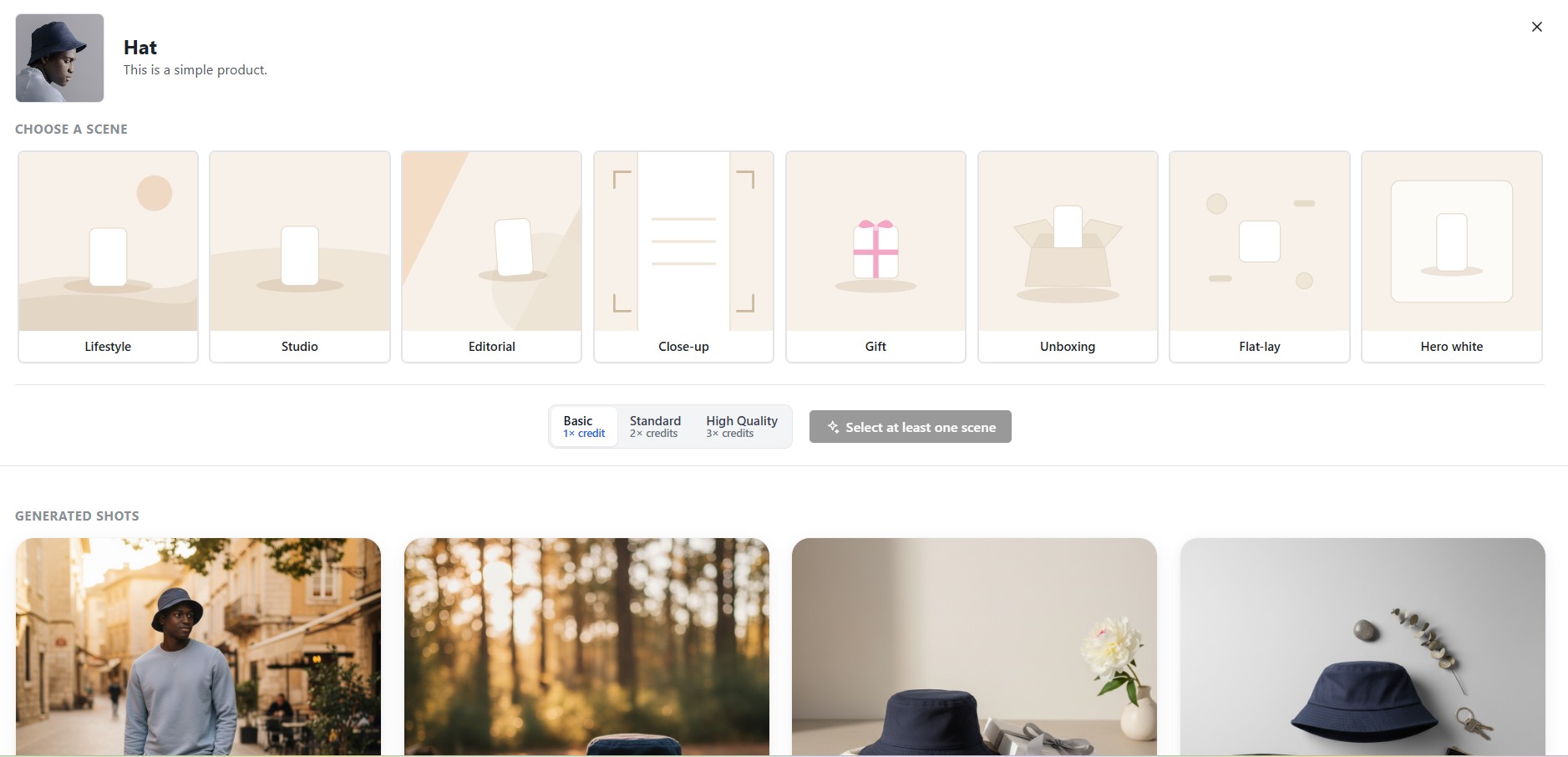
Everything it generates for the catalog comes out 1:1 at 1080×1080 — the number this whole article argues for — which is also why the same output can be turned straight into an ad without a resize:
The images in the benchmark table above came out of the same pipeline. That's the honest version of the claim: they land at 1080 square, and at WebP quality 80 they average 49 KB — comfortably inside the 150 KB budget, with the conversion left to your image plugin or your export step.
If you want those same product images to become actual campaigns rather than just better catalog photos, that's what AdControlCenter does with them — and if Meta is where you're heading, the bulk-import guide covers getting a whole campaign in at once.
FAQ
What is the best product image size for WooCommerce? Upload square. 1080×1080 is a strong default: it covers every derivative WooCommerce generates at or near 2× for retina screens, and it matches the square spec used by Meta and other ad platforms, so one file serves both your store and your ads. If you sell through Google Shopping, keep a 1500–2000 px square master and upload that instead.
What are WooCommerce's default image sizes?
Three sizes: woocommerce_gallery_thumbnail at 100×100 cropped square, woocommerce_thumbnail at 300 px wide and cropped square by default, and woocommerce_single at 600 px wide and always uncropped. You change the widths and the thumbnail crop ratio under Appearance → Customize → WooCommerce → Product Images.
Should WooCommerce product images be square? For the catalog, effectively yes. WooCommerce crops catalog thumbnails to 1:1 by default, so a non-square upload gets cropped for you and the crop may cut off the product. The main product image is uncropped, so uploading square also keeps your product pages consistent instead of mixing tall and wide images.
How big should a WooCommerce product image file be? Under 150 KB per image is a realistic target for a 1080×1080 photograph in WebP. In our measurements on 12 real 1080×1080 product images, WebP at quality 80 averaged 49 KB and never exceeded 107 KB. If your images are far above 150 KB, they're usually PNGs or oversized originals rather than genuinely detailed photos.
Is WebP better than JPEG for WooCommerce? Yes, for photographic product images. At matched quality we measured WebP about 27% smaller than mozjpeg-optimised JPEG, consistent with the 25–34% Google reports. WebP has roughly 97% global browser support and WordPress has accepted WebP uploads since 5.8. WordPress core will not convert existing JPEGs for you — that requires the Modern Image Formats plugin or an equivalent.
Why does WordPress shrink my large product photos?
Since WordPress 5.3, any upload wider or taller than 2560 px is scaled down to that threshold and the scaled file becomes the full-size image. It's controlled by the big_image_size_threshold filter. Uploading a 4,000 px phone photo therefore gains you nothing on the front end while costing upload time and server CPU.
Do I need to regenerate thumbnails after changing image sizes? Usually not manually. Since WooCommerce 3.3, changing image sizes or aspect ratios in the Customizer triggers a background regeneration job automatically. You'd only reach for a regenerate-thumbnails tool after bulk-importing images or switching themes in a way WooCommerce didn't detect.
The takeaway is unglamorous: the number that decides whether your shop page feels fast isn't 300 or 600 or 1080. It's the file size, and the file size is mostly a format decision you make once. Get the square right so WooCommerce stops cropping for you, get off PNG, and the rest is arithmetic that already worked out in your favour.
Let AdControlCenter build the ads for you
Point it at your website and it writes the copy, generates the images, and builds a ready-to-import campaign — in a couple of minutes. Everything imports paused, so nothing spends until you say so.
Start 7-day free trial7 days free, then $39.90/mo. Cancel anytime.
Live today.
The full campaign — copy, images, targeting — generated for your site and deployed paused for your approval.

We build AdControlCenter — AI-powered ad management for small businesses, online stores, SaaS companies and service providers. We write what we'd want to read: real numbers, no fluff, the things we wish we'd known when we started.
More from the team →